Here’s a step by step guide in how to install our app. We are in the process of getting it listed on Google Play but for now one has to download it manually.
📲 How to Install an App via APK File (Outside Google Play)
If the app you’re looking for isn’t available on the Google Play Store, you can still install it using its APK file. Here’s how to do it safely and easily:
⚠️ Important Note
Only download APK files from trusted sources. Installing unknown apps can pose security risks.
✅ Step-by-Step Guide
1. Enable Installation from Unknown Sources
To allow your device to install apps outside of Google Play:
- Open Settings
- Go to Security or Privacy
- Tap Install unknown apps
- Choose your browser or file manager
- Toggle Allow from this source
Tip: On some devices, this setting may be under Apps & Notifications or Biometrics & Security
2. Download the APK File
Use your browser to download the APK file from a reliable website. It will usually be saved in your Downloads folder.
3. Locate the APK File
- Open your File Manager
- Navigate to the folder where the APK was saved
- Tap the file to begin installation
4. Install the App
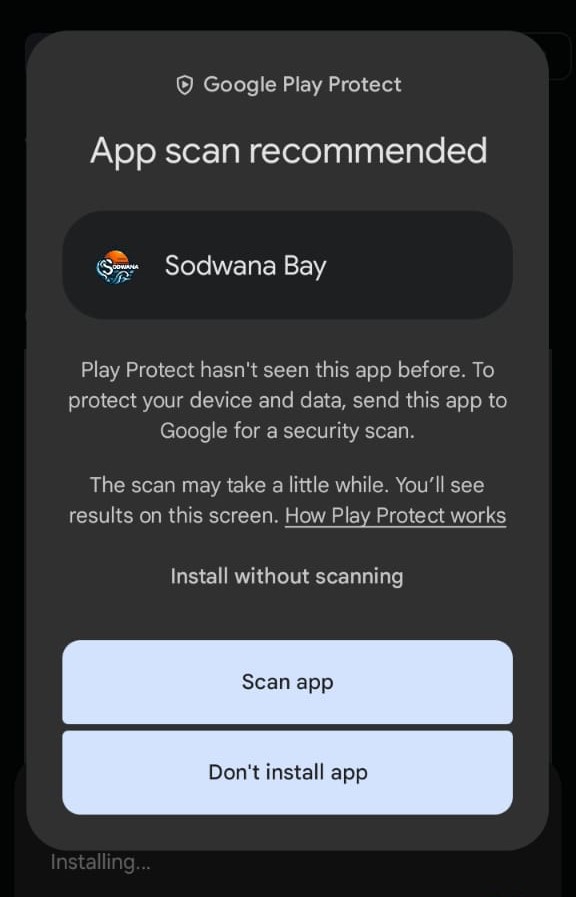
- Confirm the installation when prompted
- You should see something similar to the picture above >
- Wait for the process to complete
- Tap Open or find the app icon in your app drawer
🛠 Troubleshooting
- If installation fails, check that the APK is compatible with your Android version.
- If you see a warning from Play Protect, proceed only if you’re confident in the source.
